Stay Connected
Are you a Woodland Hills member who’s not receiving Club email messages sent via CommunityPass? Have you already checked your email account’s Spam/Junk folder to see if Club messages have ended up there by mistake?
Then let’s try to fix that issue!
It may be that your “Email Preferences” don’t reflect your actual preferences about Club email, so that’s a good thing to check.
Here’s a step-by-step guide:
1. Log in at CommunityPass, and hover over “My Account” in the top, left corner.
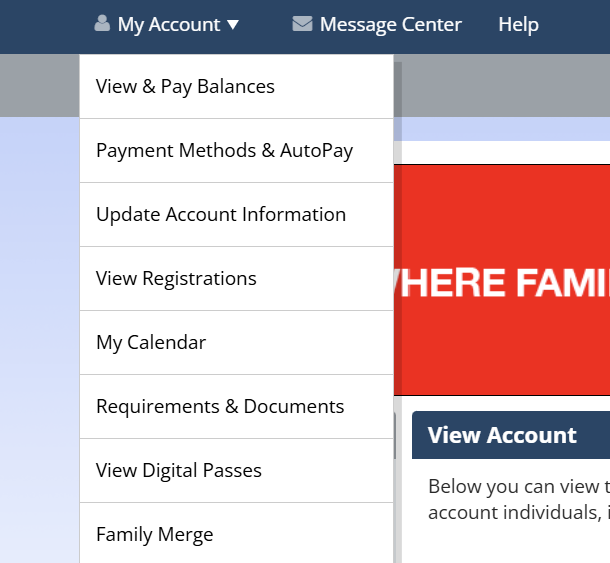
2. Select “Update Account Information.”
3. Scroll to the bottom of the Account Information page, to “Email Preferences,” and click “Edit.”
4. Scroll to the bottom again, and look at the three buttons. If the button labeled “General Info” doesn’t have a checkmark, then you won’t be able to receive any Club email messages that aren’t receipts or special alerts.
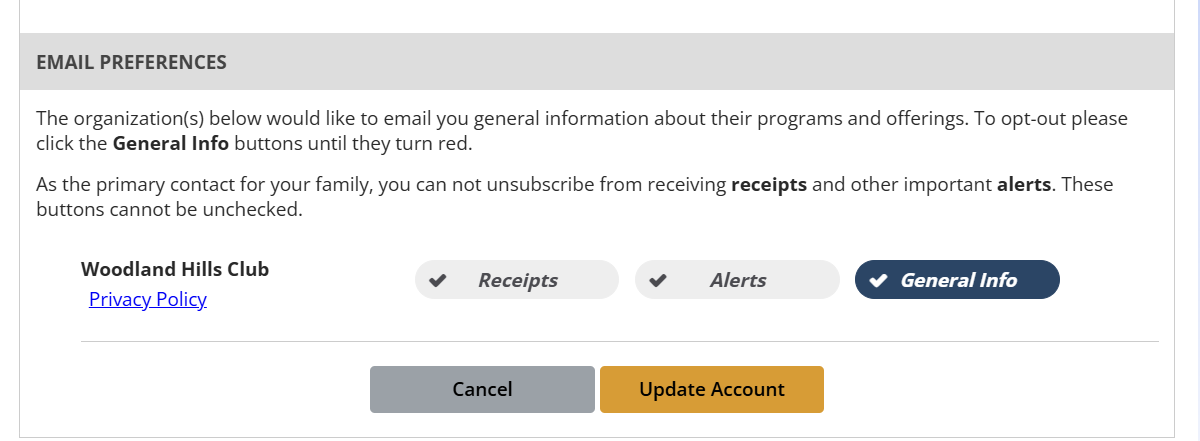
5. Click “General Info.” Verify that it now has a checkmark.
6. Click “Update Account.”
In case you’d previously opted out of General Info because the volume of Club messages was too high for you, please note: Our 2026 intention is to quiet the chaos by emailing you General Info messages less frequently. We’ve been updating our Web site to help you find the information that matters to you, on your own schedule.
Need a hand? Please contact us! We’d be glad to help.